Wireless Controllers
At a glance
Use the PlayStation 5 DualSense controllers to drive robots from ROS 2. They connect over Bluetooth on Linux with no setup, which Xbox controllers do not.
Do Not Remove the DualSense Controllers from Their Lab
There is one DualSense controller in the Indoor Lab and one at the Autonomy Park. Neither should be removed from its lab.
Our Controllers
| Controller | Color | Where | How many | Notes | Last Updated |
|---|---|---|---|---|---|
| PlayStation 5 DualSense Wireless | Black | Indoor Lab | 1 | Bought in September 2026. Use this one. | 2026-10-21 |
| PlayStation 5 DualSense Wireless | White | Autonomy Park | 1 | Bought in September 2026. Use this one. | 2026-10-21 |
| Xbox 360 Wireless | Black | Indoor Lab | 2 | Both work, but both have stick drift. | 2026-10-21 |
The Xbox Wireless Controller on this page always means the third revision, which is different from the Xbox 360 Wireless controllers. The Autonomy Park used to have a third-revision Xbox Wireless Controller. We broke its USB-C port and it became useless (see below), so it was thrown away. The lab has no Xbox Wireless Controllers now.
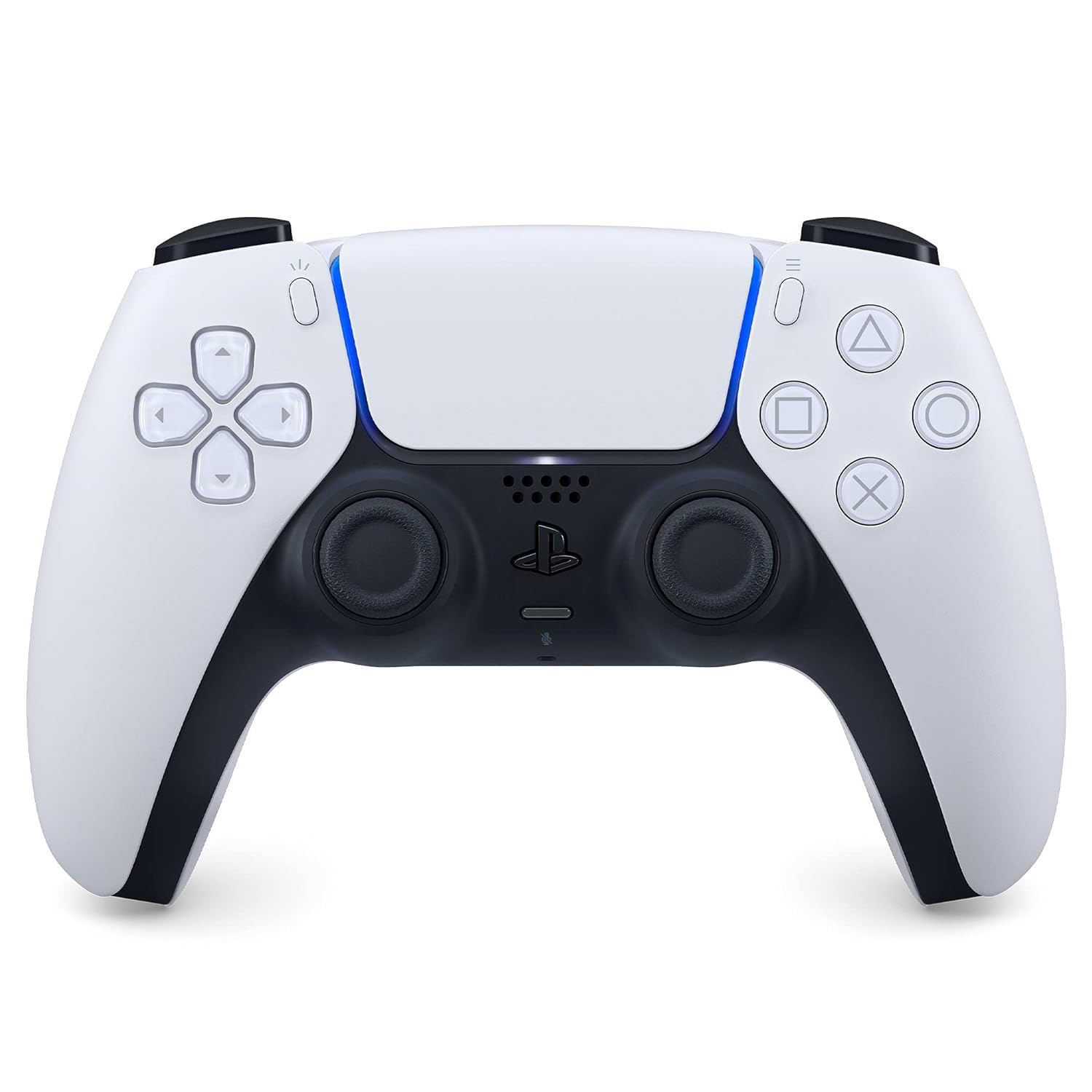
The PlayStation 5 DualSense Wireless Controller (stock image).
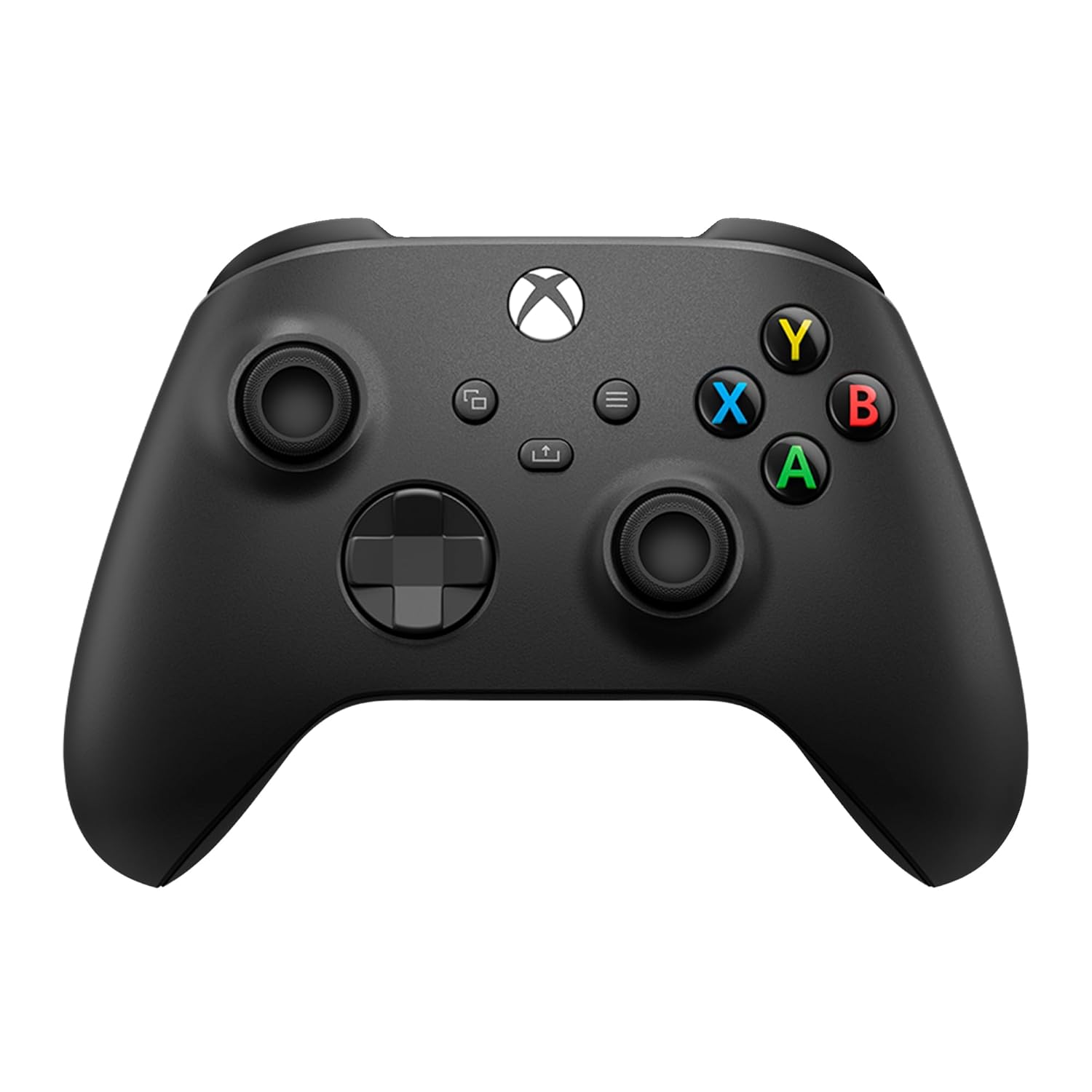
The Xbox Wireless Controller, third revision (stock image). The lab no longer has one.
Why the DualSense Is Better for Robotics
Both the Xbox Wireless Controller and the PlayStation 5 DualSense Wireless Controller are supported by ROS 2 (for example, by the joy node). The difference is in how they connect to Linux.
Bluetooth Works Out of the Box on the DualSense
The Linux kernel has Bluetooth support for the DualSense, so it works over Bluetooth out of the box. It does not even need the latest firmware.
The Xbox Wireless Controller does not have Bluetooth support on Linux out of the box. It apparently must be upgraded to the latest firmware, and that can only be done on Windows. We tried the upgrade on one controller, on multiple computers, and it failed. We did not hard reset the controller to try again. So we never verified whether newer firmware would allow Bluetooth to work on Linux.
When we connected the Xbox Wireless Controller to Linux, it connected and disconnected rapidly, and we could not solve it.
Why Bluetooth Matters
- A fallback when USB-C breaks. We broke the USB-C port of a third-revision Xbox Wireless Controller at the Autonomy Park. Without Bluetooth as a fallback, the controller became useless.
- Fewer cable snags. A cable can snag, and it stresses the USB-C port.
Firmware Updates Are Windows-Only
Updating the firmware of either controller is only possible with a Windows-only app. Running it with Wine or on Linux is not possible at all. We also tried upgrading a DualSense's firmware on Windows, and that failed too. The DualSense does not need the update.
How to Pair a DualSense on Ubuntu
- Put the DualSense in pairing mode: hold the PS button and the Create button (the small button left of the touchpad) until the light bar flashes.
-
In a terminal on your computer, open the Bluetooth tool:
bluetoothctl -
At its prompt, start scanning, and find the controller's address in the list:
scan on -
Pair, trust, and connect, using that address:
pair <controller-mac-address>
trust <controller-mac-address>
connect <controller-mac-address>
Once trusted, the controller reconnects on its own when you turn it on.
Run the joy Node
The joy node publishes the controller's buttons and sticks to the /joy topic. Connect the controller over Bluetooth or USB first.
Install the package on your computer, then run the node in a new terminal:
sudo apt install ros-humble-joy
source /opt/ros/humble/setup.bash
ros2 run joy joy_node
Find Which Button Is Which Input
Your robot code reads the buttons and axes arrays of the /joy messages by index. To find the index of each button:
- Run the
joynode with the controller connected over Bluetooth or USB. -
In another terminal, echo the topic:
source /opt/ros/humble/setup.bash ros2 topic echo /joy -
Press one button at a time. In the
buttonslist, the value changes from 0 to 1 for that button. -
Count the lines of the
buttonslist down to the changed value. That index is the button's input number.The First Line Is Index 0
Count the first line of the list as index 0, not 1. Counting from 1 makes every button off by one.
The same method works for the axes list: move one stick and count the lines to the value that changes.