PX4 Configuration
At a glance
Every Homebrew quadcopter is configured the same way and then calibrated on its own. Skipping a step, or reusing another drone's calibration, causes intermittent problems and crashes.
Written for QGC 5.1.5
This guide was written for QGroundControl (QGC) 5.1.5. The QGC interface was reworked in 5.1.x, so the menus in 5.0.x look different and the menu paths in this guide will not match. If you use 5.0.x, expect to hunt for the equivalent menu.
QGC 5.1.x and Later Has No Ubuntu 22.04 Binary
QGC 5.1.x and later do not provide binaries for Ubuntu 22.04. On Ubuntu 22.04 you must build QGC from scratch. QGC 5.0.8 is fine to use for the foreseeable future.
Read Parameters in the PX4 v1.16 Reference Only
To understand any parameter in this guide, Homebrew Parameters, or Calibration Parameters, use the PX4 v1.16 parameter reference. Do not use the main (latest) reference: parameters differ between PX4 versions.
These Parameters Configure MAVROS, Not uXRCE-DDS
The parameter template below configures MAVROS (tested with MAVROS 2.16.0). It does not configure the Micro XRCE-DDS Agent. Torque-level offboard commands need the Micro XRCE-DDS Agent, because MAVROS does not support them.
As of PX4 1.17.0 (and so 1.16.2), the Micro XRCE-DDS Agent exposes no topic for serving RTK corrections to PX4. With MAVROS, an NTRIP client on a companion computer publishes the corrections to <mavros_namespace>/mavros/gps_rtk/send_rtcm.
Pull request #29368 (RTK corrections over uXRCE-DDS) is not part of any stable PX4 release. To experiment with torque-level control together with RTK, you must build mainline PX4 and port every parameter to the current PX4 parameter reference.
RTK Corrections Are Not Served Through QGC
As of QGC 5.1.5, serving RTK corrections through QGC does not work, even though it is advertised as a feature. The QGC developers admit that no one has field-tested it, and Max's field test failed. The Autonomy Park serves RTK corrections to the robots a different way, and nobody should serve RTK through QGC anyway: it is extra setup for no reason.
Requirements
- QGroundControl (QGC), see the notes above for the version. Install details: Software We Use.
- A USB connection to the flight controller, directly or through the spare dongle (see Wired (USB)).
- A wireless telemetry radio for the calibrations (see Wireless (Radio)).
- A LiPo voltage checker for the battery voltage calibration (see "Battery Voltage Calibration" in Sensor Calibration).
- The files in the Files section.
Files
Use these direct links for configuration and recovery. Do not use older versions unless specifically troubleshooting legacy hardware.
| File Type | Description | Link |
|---|---|---|
| Firmware Binary | Stable PX4 v1.16.2 for the CubePilot Cube Orange | cubepilot_cubeorange_default_1_16_2.px4 |
| Parameter Template | Parameters for the Homebrew airframes on PX4 1.16.2. It contains no calibration values, so it is safe to load again and again on any quadcopter | homebrew-px4-v1.16.2.params |
| Parameter Reference | What each parameter in the template is set to, and why | Homebrew Parameters |
| Calibration Parameters | The per-drone parameters that are never copied between quadcopters | Calibration and Per-Drone Parameters |
| Comparison Script | Python script that compares two or more parameter files and lists the differences, leaving out the calibration parameters | px4-param-diff.py |
The parameter template is applied on top of the default multicopter parameters for PX4 1.16.2. The Clean Configuration Procedure gives the full procedure.
To compare parameter files, run this on your computer in the folder that holds the script and the files:
uv run px4-param-diff.py --files <first.params> <second.params> --output_csv <differences.csv>
Upgrading Firmware
Upgrading PX4 is covered on its own page: Upgrading PX4 Firmware.
Connection Protocols
Wired (USB)
Use for flashing firmware, configuring the Actuators tab, and high-speed data transfer.
- Safety: Start with the drone disconnected from the battery and all propellers removed. Connect to the computer via USB (directly to the Flight Controller or the spare dongle).
Wireless (Radio)
Use for sensor calibration and general telemetry.
- Baud Rate: Ensure the baud rate is set to 57600. If QGC shows a default, leave it at this value.
- Limitation: The Actuators tab is inaccessible via radio; it will revert to the legacy Motors tab. Do not modify settings here.
- QGC setup of the radio: Not yet documented.
- Linux Permission: If opening the port fails because of dialout permissions, add your user to the dialout group, then restart the machine.
On Linux, add your user to the dialout group:
sudo usermod -a -G dialout $USER
Manual Connection Discovery
If autoconnect fails, identify the port and set permissions.
List the serial devices:
ls /dev/tty*
Not verified on WSL.
List the serial devices. You may see something like /dev/cu.usbserial-B0048D22:
ls /dev/cu.*
Give yourself permission to use the port you found. Skipping this results in a "Permission error when locking device" message:
sudo chmod 666 /dev/cu.<id>
In PowerShell, list the USB devices to identify the COM port:
Get-PnpDevice -PresentOnly | Where-Object { $_.InstanceId -match 'USB' }
Use the COM port it reports.
Not verified on Windows.
Clean Configuration Procedure
Perform these steps via USB. Start with no propellers and no battery connected, and add the battery only when a step tells you to. Note that not all aspects are stored as parameters (e.g., Airframe type and ESC Calibration), which is why some things can come before loading the set of Parameters.
-
Firmware Flash: In the Firmware tab, follow the instructions to flash custom firmware, selecting cubepilot_cubeorange_default_1_16_2.px4.
-
Reset: In the Parameters tab, open the Tools menu and select Reset all to firmware's defaults.
Never Reset to Vehicle Defaults
Never use Reset to vehicle's configuration defaults for this step. Use Reset all to firmware's defaults.
-
Reboot: Use the Reboot Vehicle button in QGC (Q icon > Configure > Parameters > Tools > Reboot Vehicle).
-
Airframe: Select Generic Quadcopter (Quad X). Ignore the red sensor errors in the log for now.
What This Step Does
Selecting Generic Quadcopter (Quad X) is the same as setting
SYS_AUTOSTARTto 4001 andSYS_AUTOCONFIGto 1 in the Parameters tab and then rebooting. It applies a series of defaults that every quadcopter needs. These defaults are the base that the parameter template in step 7 is applied on top of.PX4 handles many more vehicle types than quadcopters. The template does not necessarily apply to any of them.
-
Reboot: Again.
-
ESC Calibration: Follow the QGC wizard. Ensure propellers are removed before plugging in the battery when prompted.
Done Once, Ever
ESC calibration must be done once, ever, unless the ESCs are changed. It is one of the few things that is not stored in PX4.
PX4's v1.16 documentation says this calibration is only for PWM and OneShot ESCs: DShot and CAN ESCs do not need it. The Homebrews are configured for PWM.
-
Template: Load the PX4 template for the Homebrews: homebrew-px4-v1.16.2.params.
-
Reboot: Final reboot to commit parameter changes.
-
Sensor Calibration: The template contains no calibration values, so every calibration in Sensor Calibration must be done, including the battery voltage calibration.
Load the Template Before You Calibrate
The template sets parameters that the calibrations rely on, such as SENS_BOARD_ROT. Never calibrate first and load the template afterward, even though the template contains no per-drone calibration values.
Sensor Calibration
Never Calibrate Sensors Over USB
Compass calibration requires continuous slow spinning. A USB cable will snag, tangle, and can damage the flight controller port or the cable itself. Use the wireless radio.
Disconnect USB and switch to the wireless radio. Seal the drone up for a firm grip.
Do all four sensor calibrations: Level Horizon, Gyroscope, Accelerometer, and Compass. Then do the battery voltage calibration below.
The recommended order is Level Horizon, Gyroscope, Accelerometer, then Compass. The order is recommended, not required. The first two can be done by setting the quadcopter on the ground, without rebooting it.
Never Reuse Another Drone's Calibration Values
Calibration values are unique to each quadcopter. Reusing them causes intermittent problems and crashes. Every drone has its own magnetic interference (soft and hard iron) and IMU biases, so another drone's calibration makes measurements drift or triggers EKF failures. PX4 will never throw an error because as far as it knows, sensors have non-default calibration values which implies a correct set of calibrations. The Homebrew parameter template contains no calibration values, but a parameter file exported from another drone does. Always calibrate each drone individually.
Battery Voltage Calibration
Calibrate battery voltage using a physical voltmeter for reference: the LiPo voltage checker shown below. The battery sensing values are unique to each quadcopter (see Calibration Parameters).
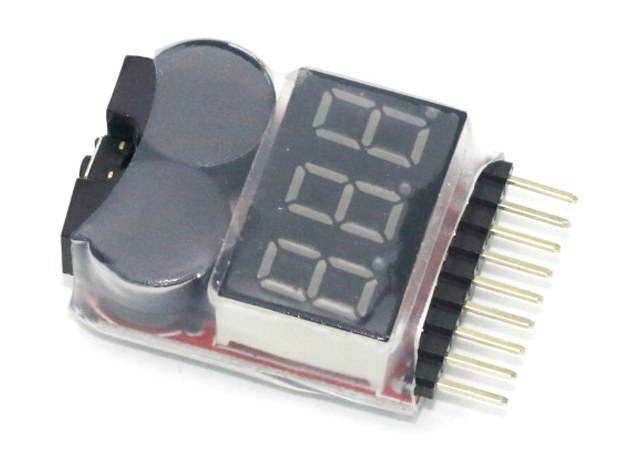
Example of a physical voltmeter: a LiPo voltage checker.
Critical Technical Notes
Firmware Management
To flash PX4 you need a .px4 file for the platform you want. For us that is the CubePilot Orange. We also have CubePilot Blue controllers, which are functionally identical, so they use the same file. This is not the file for the CubePilot Orange+.
When you flash from QGC's Firmware tab, QGC downloads the latest stable PX4 automatically. Getting an older version, or a newer one before it is stable, requires building it: see Building PX4.
We keep the .px4 file here for simplicity: cubepilot_cubeorange_default_1_16_2.px4. Back up the .px4 file of any future PX4 version you use.
Parameters vs. Calibrations
Not everything is stored in a .params file. Sensor calibrations are stored as parameters, but they are unique to each quadcopter and are never copied between drones (see Sensor Calibration). ESC calibration is not stored in PX4 at all (see step 6 in section 4.0).