Ubuntu in VMware
At a glance
Runs on: Windows. How to install Ubuntu 22.04.5 in a VMware virtual machine on a Windows computer, so you can do the ROS 2 tutorials without deleting Windows. There is also a video walkthrough for VirtualBox: see Ubuntu in VirtualBox.
Apple Silicon Macs Are Not Covered
There is no guide for Apple Silicon Macs, because they need an ARM-based Ubuntu. ROS 2 supports it, but some things, such as GPU acceleration for Gazebo, will not work. We have not tested these virtual machines with ROS on a Mac.
A virtual machine (VMware) lets you run Linux on your Windows computer without deleting the operating system. This guide gets Ubuntu running so you can do the ROS 2 tutorials. The same installation in VirtualBox, with a video, is on Ubuntu in VirtualBox. The other software the lab uses is on Software We Use.
Never Update Ubuntu
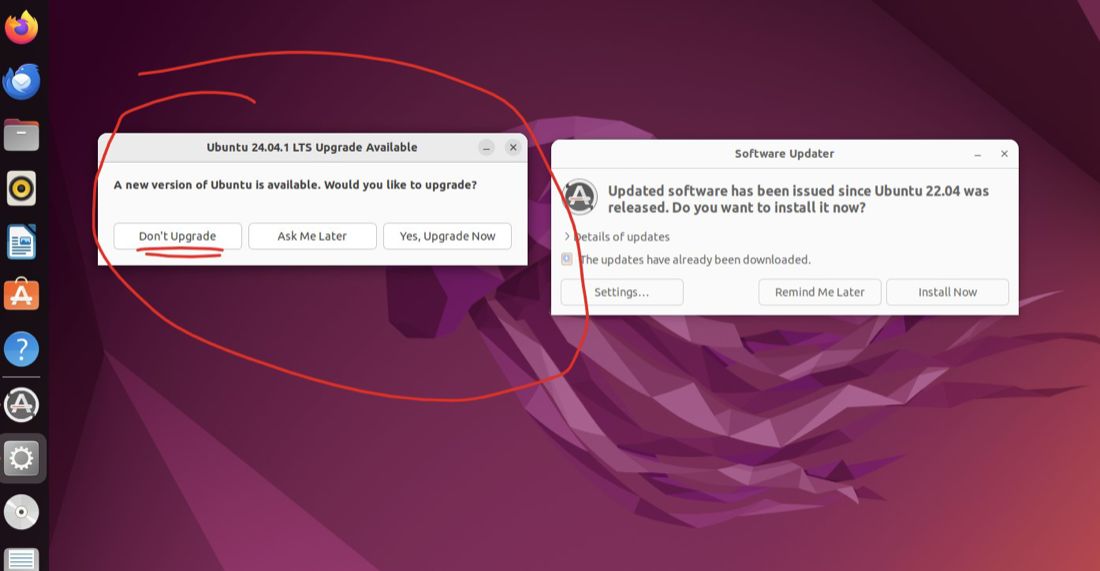
Use Ubuntu 22.04.5, and do not update it. ROS 2 Humble needs it. When Ubuntu offers to upgrade, always decline.
Install VMware
-
Download VMware Workstation Pro from the VMware link on Software We Use. This guide used version 17. If it asks, use it for personal use.
-
Run the installer. The setup wizard is straightforward and needs no special changes.
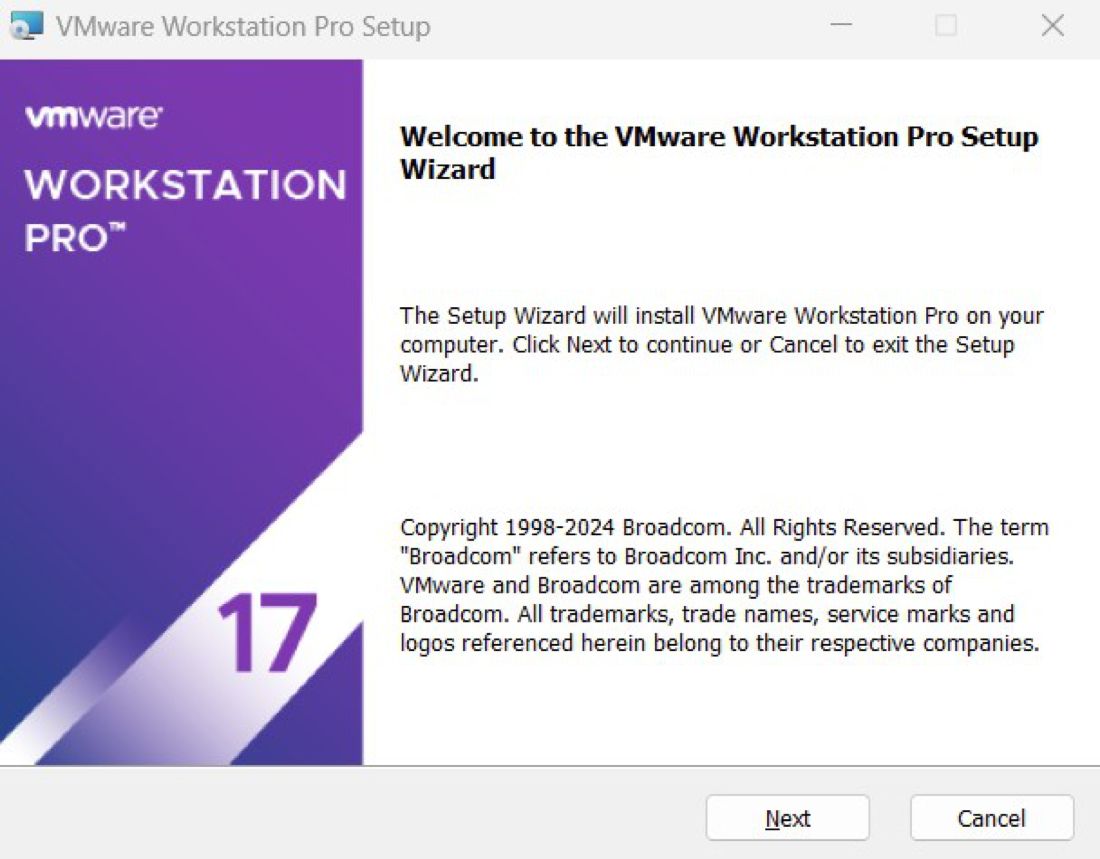
One suggestion: turn off VMware checking for updates on startup, and update only when you open the Workstation.
-
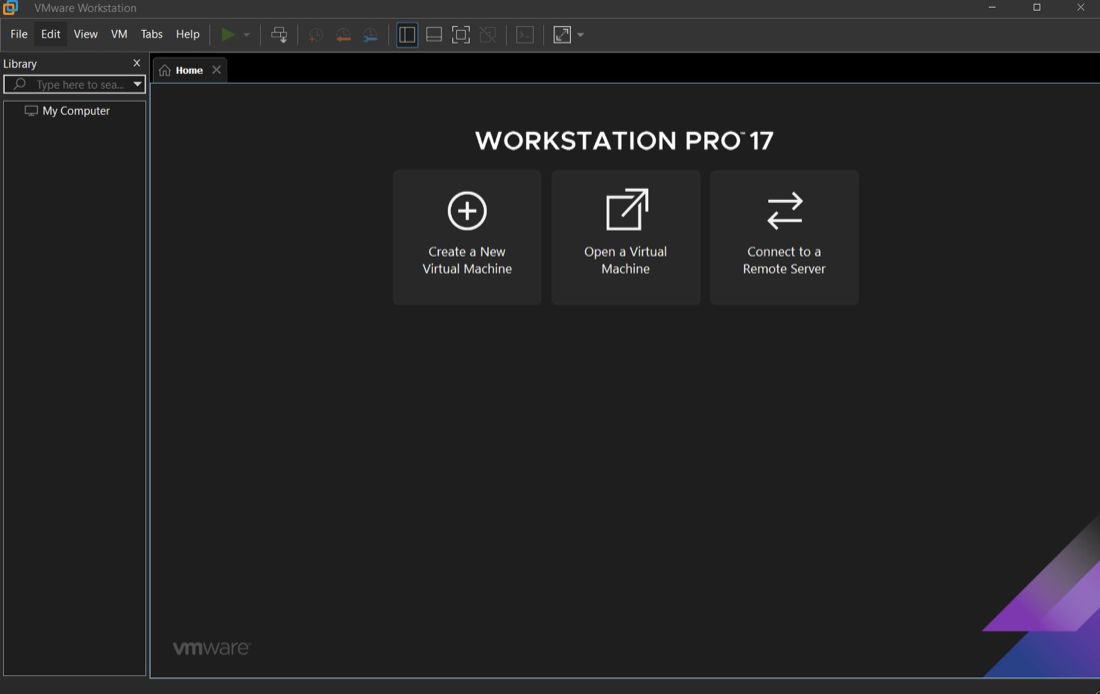
Open VMware Workstation. The first time, it looks like this:
Download Ubuntu
-
Download Ubuntu 22.04.5 LTS (Jammy Jellyfish), the 64-bit PC (AMD64) desktop image. The file is called
ubuntu-22.04.5-desktop-amd64.isoand lands in your downloads. -
Move the file to a folder you will remember, so you know its path.
Create the Virtual Machine
-
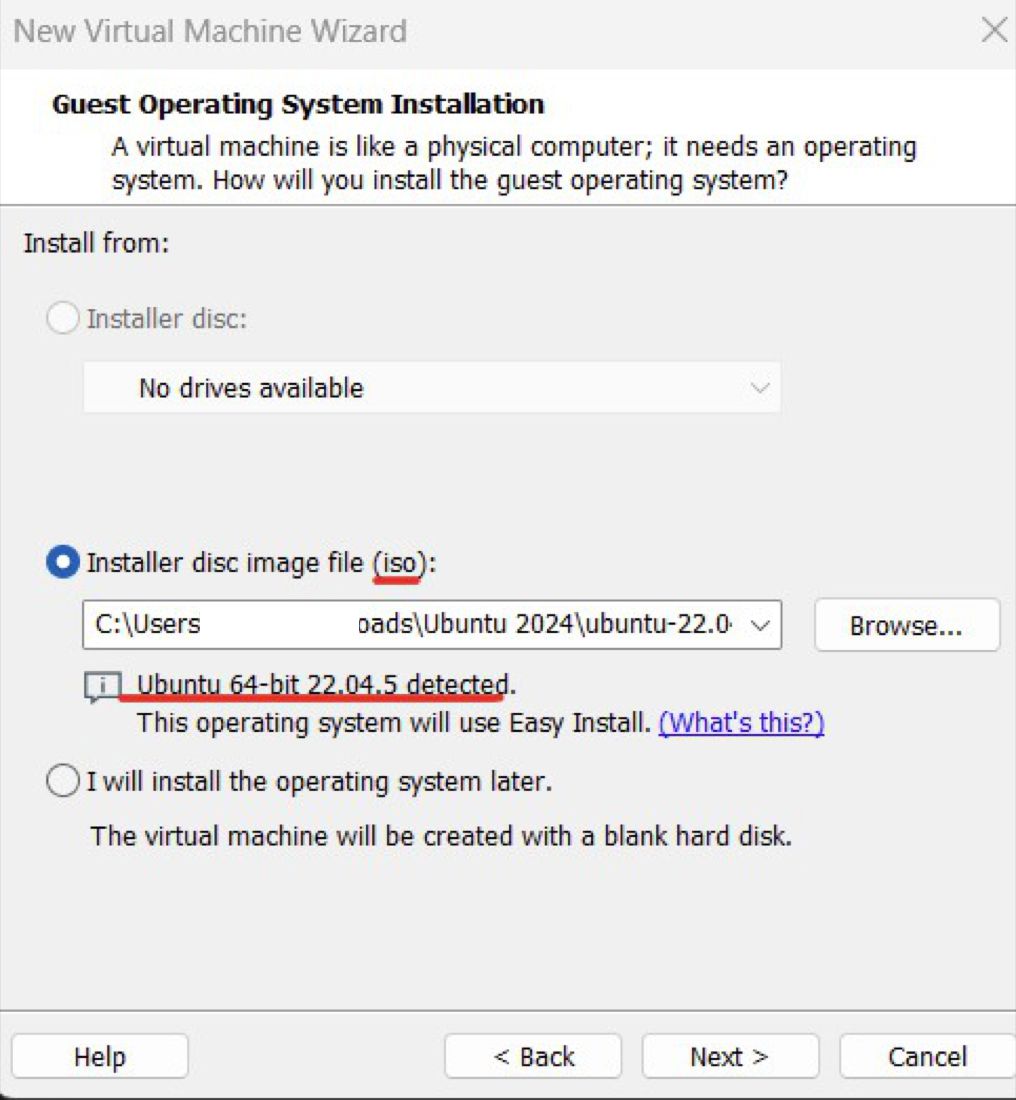
In VMware, choose Create a New Virtual Machine. Select Installer disc image file (iso) and give the path to the Ubuntu file. VMware should say that Ubuntu 64-bit 22.04.5 was detected.
-
Fill in your name, a username and a password for the virtual machine.
-
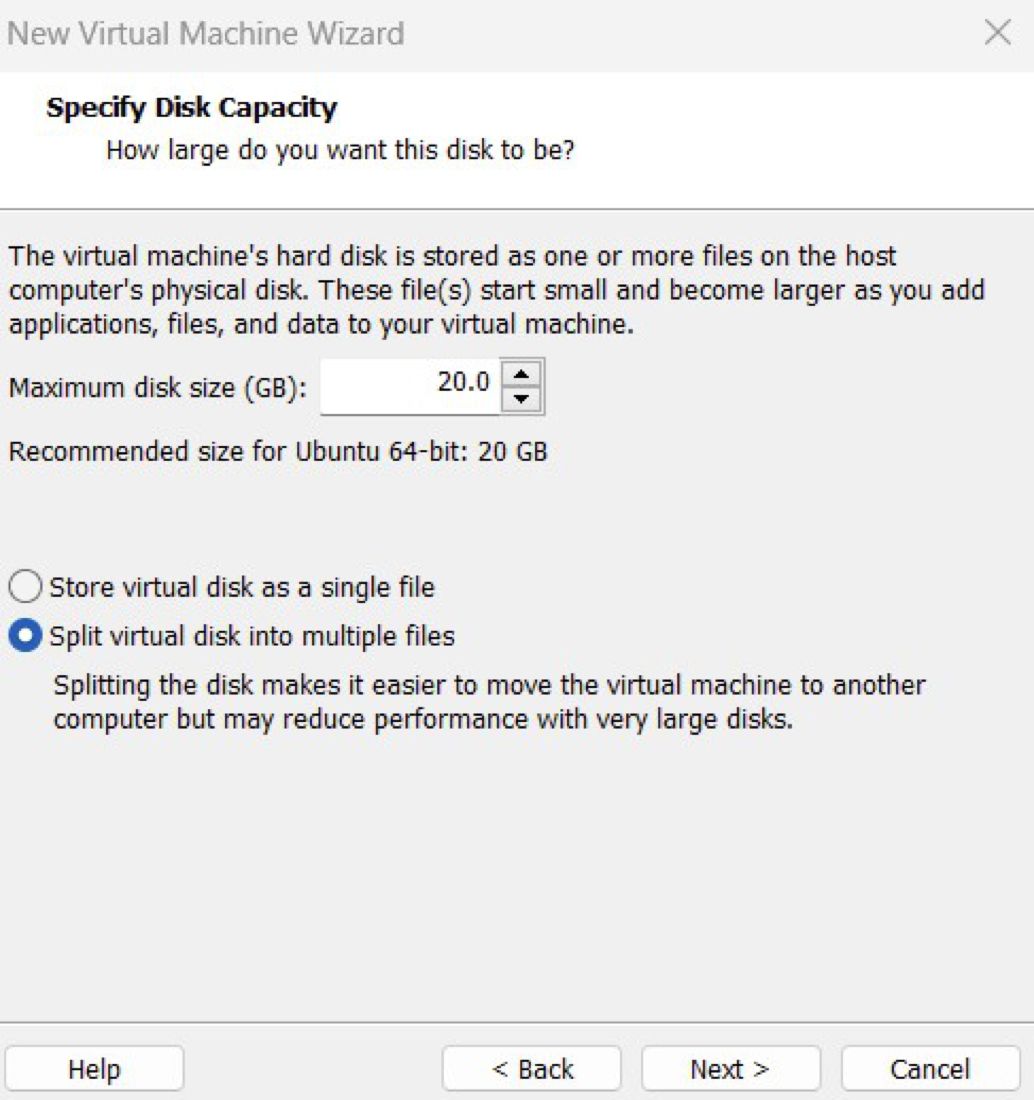
When it asks how large the disk should be, leave the standard size (20 GB) for just the ROS tutorials. If you need to flash NVIDIA Jetsons or do more with your VM, select 100 GB. Larger projects need more: see the note on disk space in Software We Use.
-
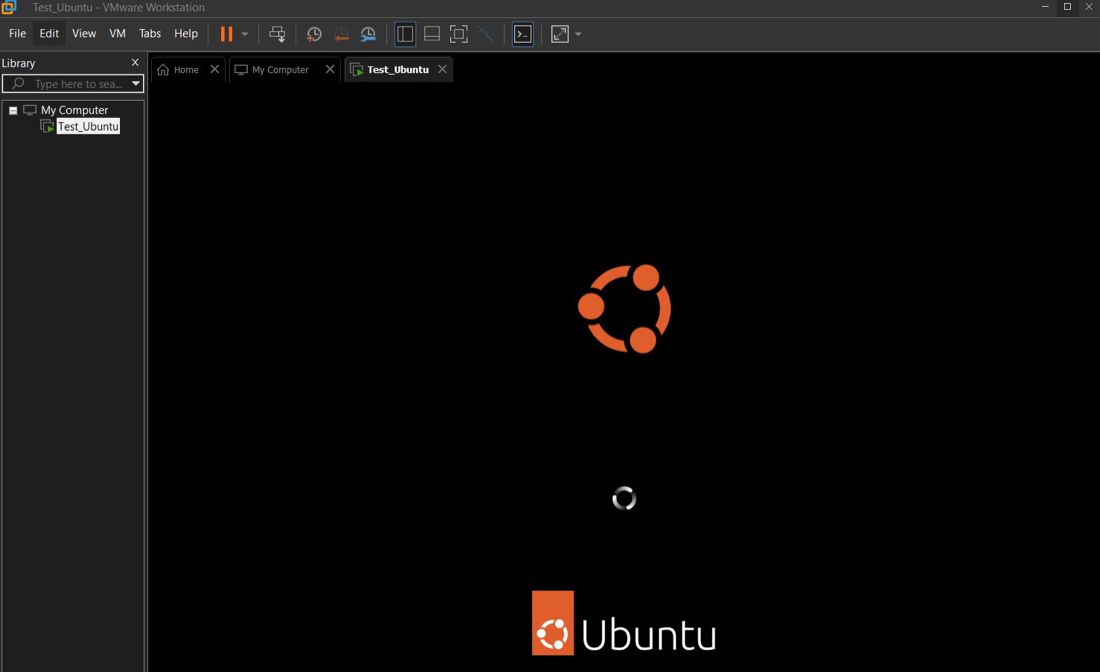
Finish the wizard. The virtual machine boots, and the Ubuntu installer starts.
Install Ubuntu
-
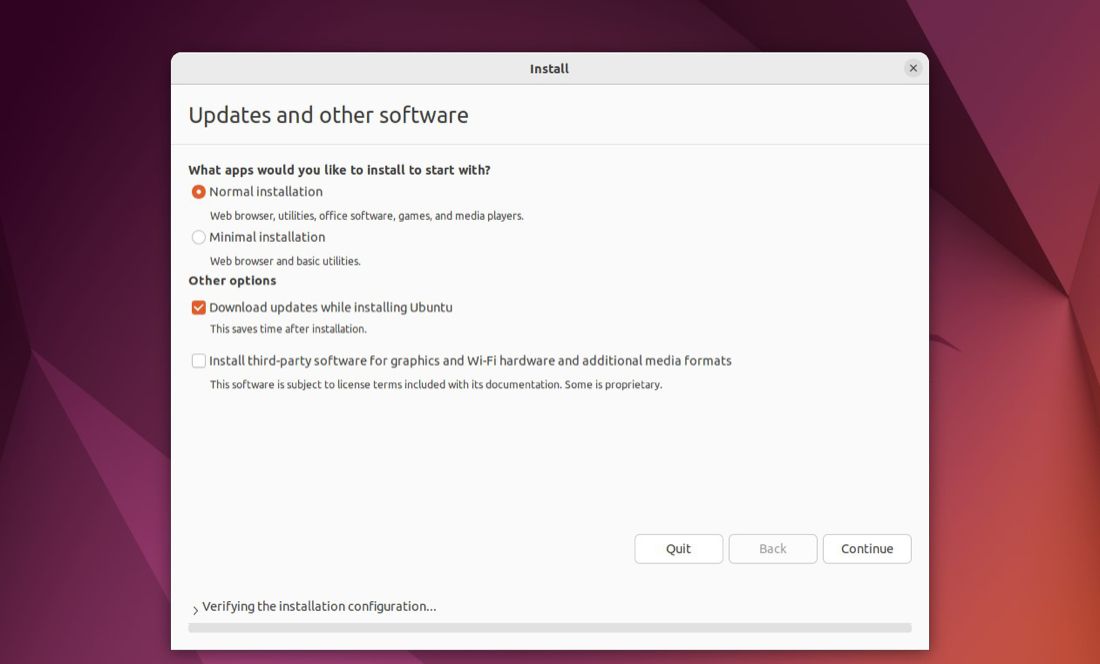
Use the standard settings. They are enough to learn ROS 2.
-
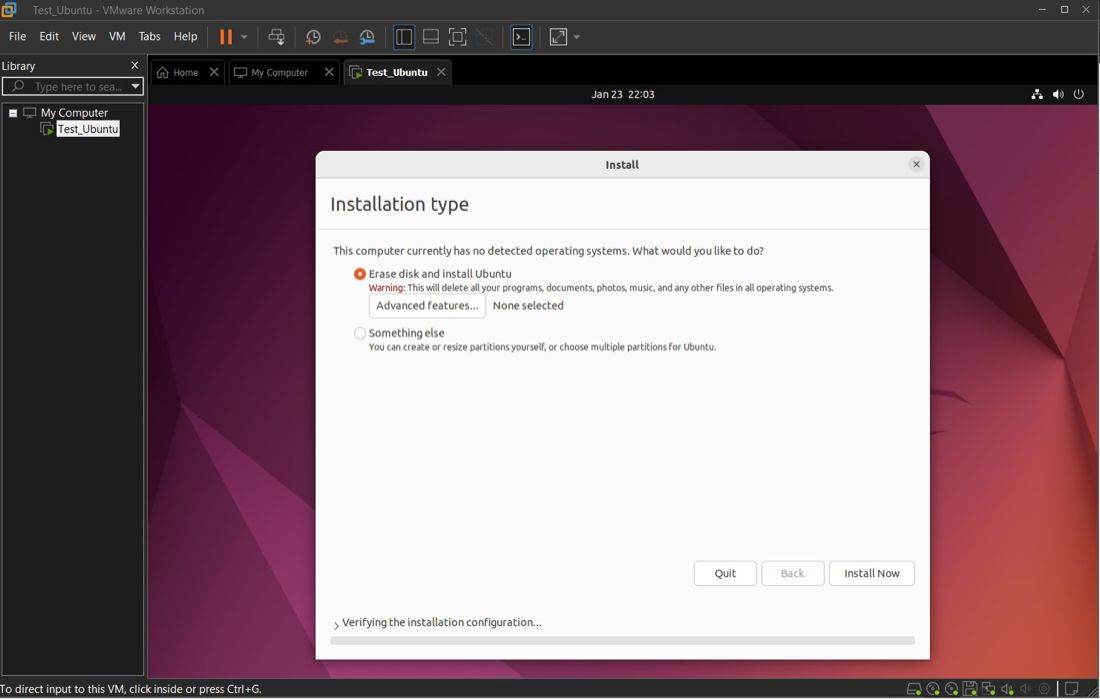
Ubuntu asks whether to erase the entire disk. This is fine here: the disk space belongs to the virtual machine, which you allocated already. Make sure you followed all the steps above and that Ubuntu is open in VMware Workstation, then start the installation.
-
Enter your name, a computer name, a username and a password.
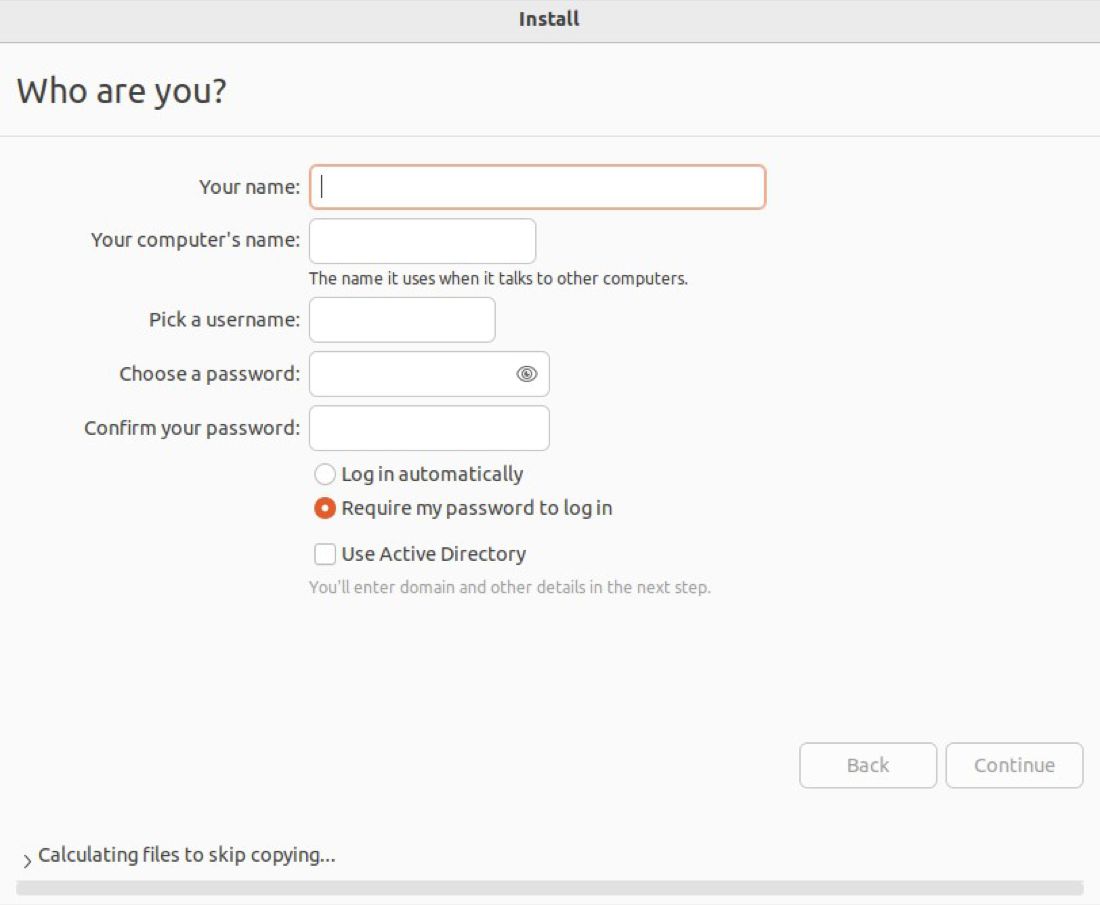
Keep the computer name short and easy to remember, because you will see it in the terminal when you work in Linux and ROS 2. For example, if your name is Bob Murray, the computer name could be
bmurr. Make the username and password easy to remember, since you use them to log in when the virtual machine starts or after it has been idle. -
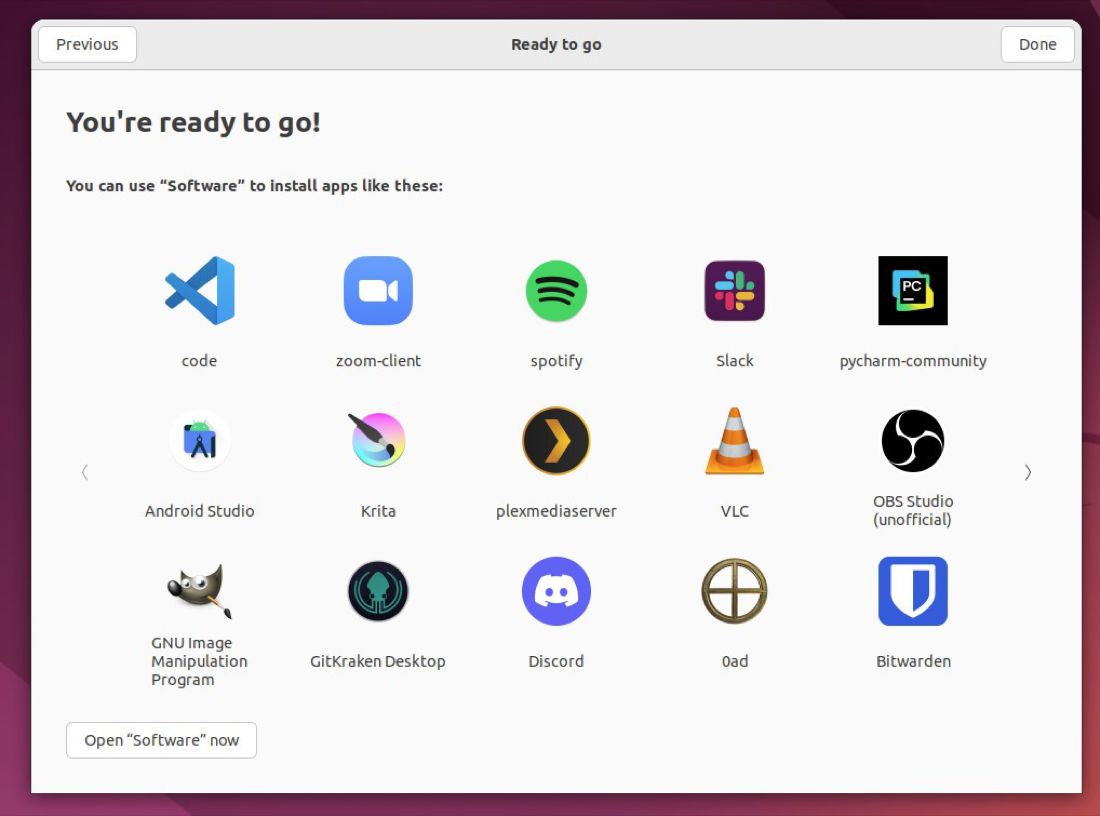
Let the installation continue. It restarts the virtual machine, then asks you to log in with the username and password you set. Continue the setup until you see the "You're ready to go" screen.
-
Ubuntu will prompt you to update. Do not update. Click Don't Upgrade. Keep Ubuntu 22.04.5 to work on ROS 2 Humble.
-
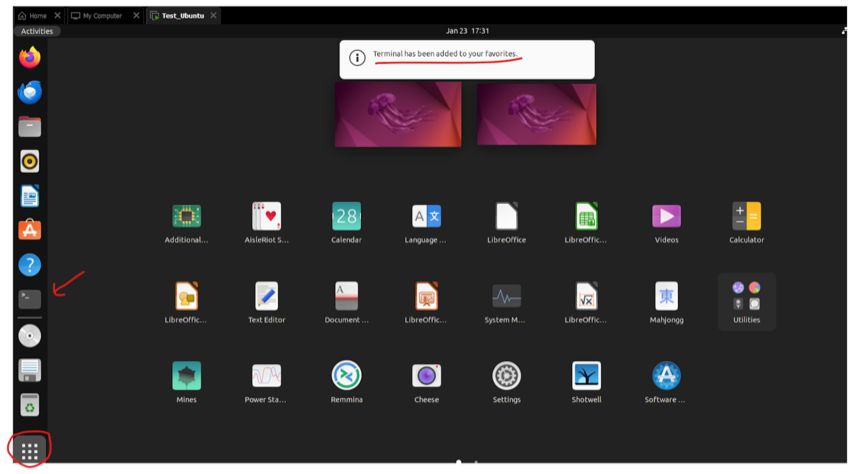
Ubuntu is now fully installed. Add the terminal to your favorites so it stays on the taskbar: click Show Applications at the bottom of the taskbar, then right-click the terminal and favorite it.
Next: ROS 2
Open the terminal and install ROS 2 by following the official Humble guide. A video walkthrough is on Software We Use. Then do the tutorials.